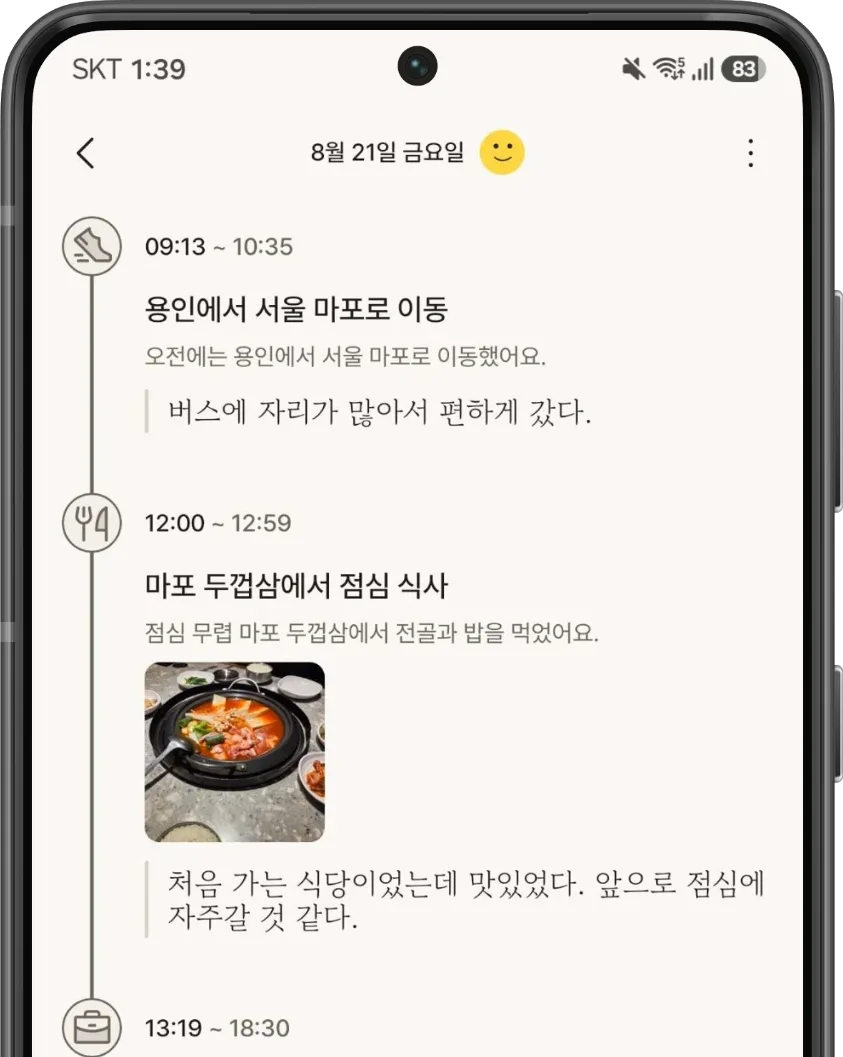
- From Location Headed into the office as usual.
- From Calendar Had a planning meeting in the morning.
- From Photos Picked up groceries on the way home.
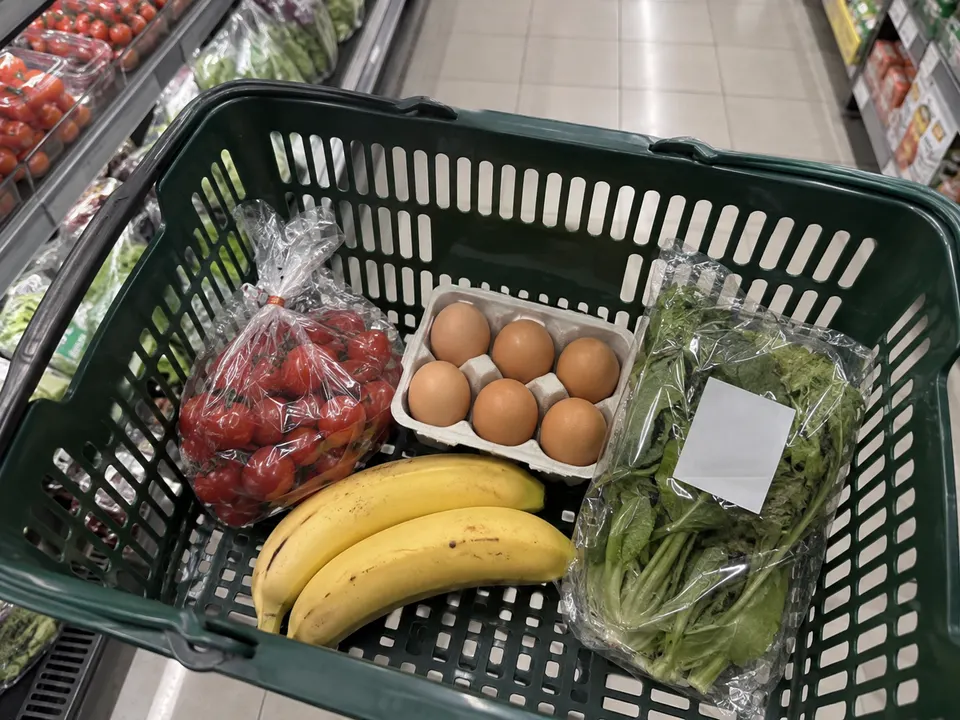
What did you do today?
Laimory sums it up at a glance.
AI gathers your photos, calendar events, and location history into a timeline of your day.
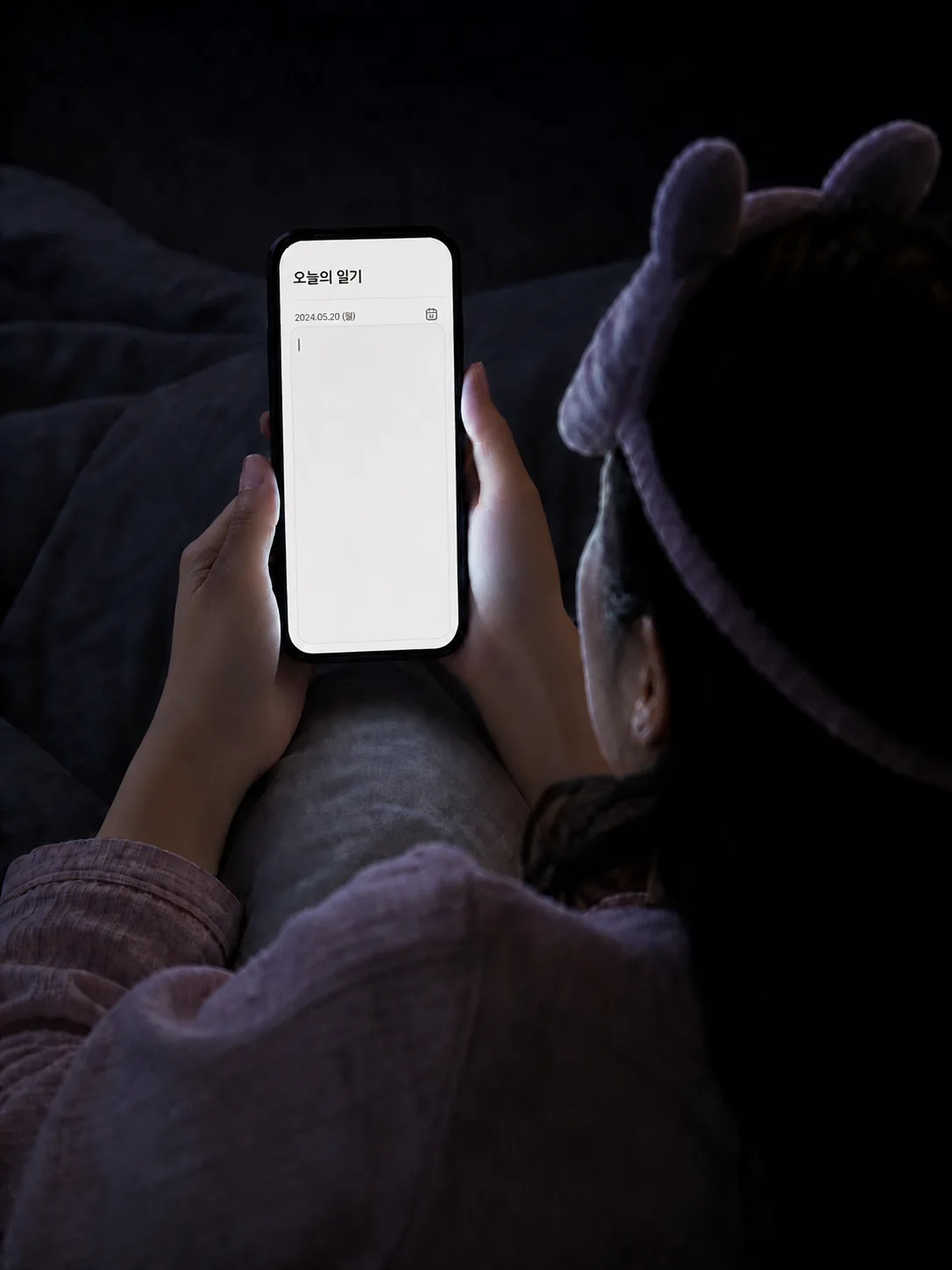
Memories fade, and journaling keeps getting put off.

Laimory brings your scattered records together—photos, calendar, GPS, and more—into a timeline of your day.
Scattered moments,
turned into a day you can read again.
Laimory gathers the calendar events, photos, and location history already on your phone and weaves them together in order. Without writing a word, your day is kept as a story of its own.
Records already on your phone
- Calendar
- Photos
- Location
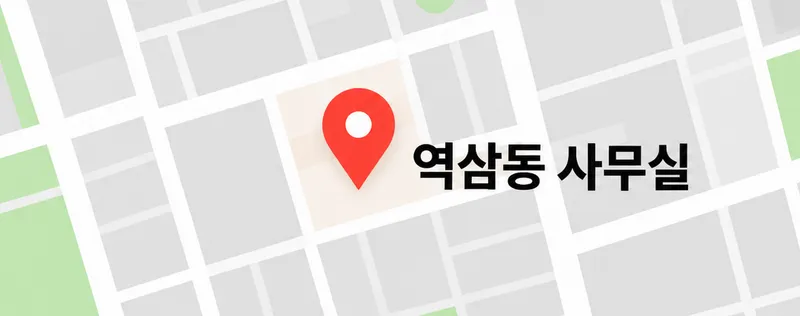
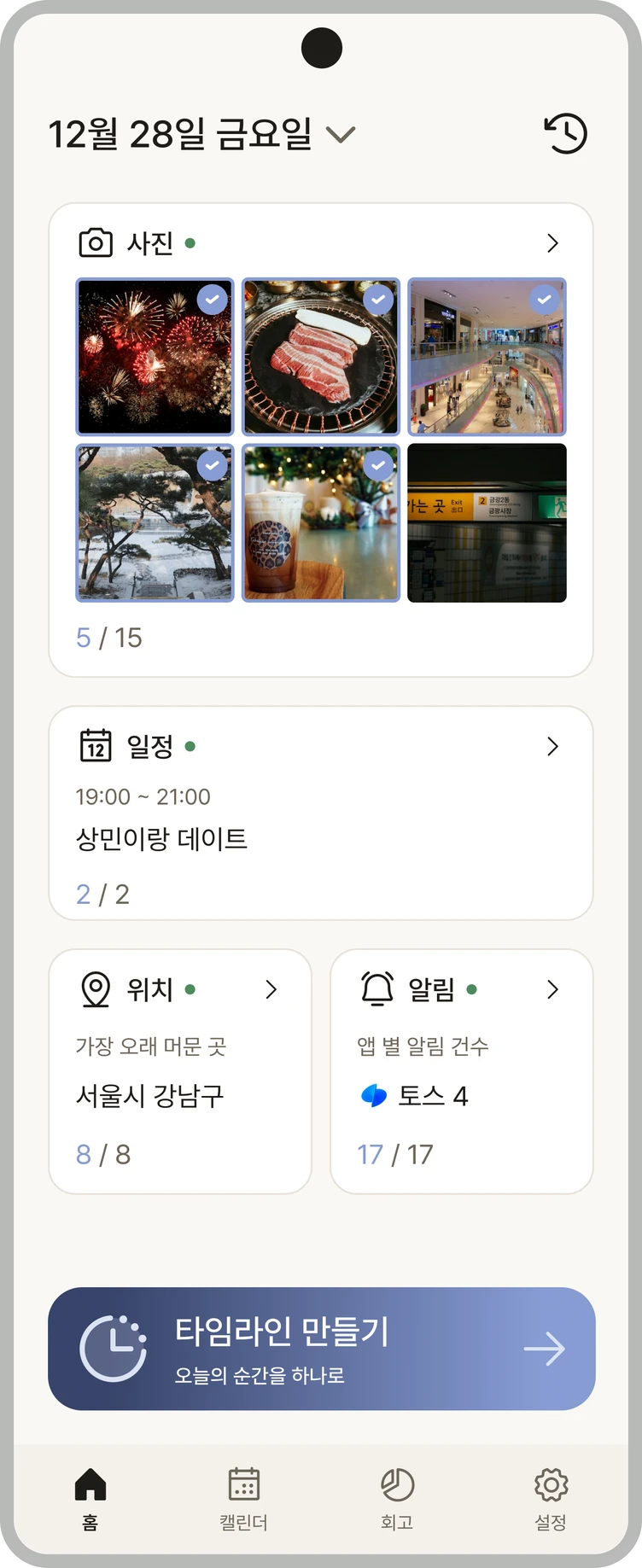
Make a timeline Today's moments, all in one
Your day, woven by Laimory
Connect once, and the rest gathers on its own.
Just choose what you want at the start—photos, calendar, location, or activity—and from then on, AI organizes it into your timeline every day.








How much gets recorded
is up to you.
- Before creating See what will be included, and leave out what you want
- After saving Kept in a form that can't be traced back to you, and deletable at any time
Where does Laimory get my records?
Laimory organizes your day using information that's already on your phone. You don't link accounts or sign in to other apps. It only reads what you've allowed in your phone's settings.
Photos From your phone's Gallery
- It only reads photos saved in your gallery. It never deletes or changes them.
- It checks when each photo was taken and, if the photo has location data, where it was taken.
- Screenshots and downloaded images in your gallery may show up as candidates too, but you choose which photos go into a record.
- If you choose "Allow selected photos only" in your phone settings, it can see only those photos.
- Photos you pick when creating a record are sent to the server as original files. AI reads the scenes in them to organize your day.
Calendar From your phone's Calendar app
- It only reads events in your phone calendar. It never creates or edits them.
- It only looks at events in calendars you created.
- Events you added directly to your phone's default calendar (e.g., Samsung Calendar)
- Events in calendars you created in the Google account synced to your phone This includes not just the default calendar but also calendars you made yourself, like "Workout" or "Work."
- Your own calendars in any other account set to sync with your phone calendar (e.g., Outlook)
- It doesn't read holiday calendars or calendars other people have shared with you.
- It only checks past events from the last month. It doesn't look at upcoming events.
- It reads event titles, times, locations, and notes. For long notes, it only takes the beginning.
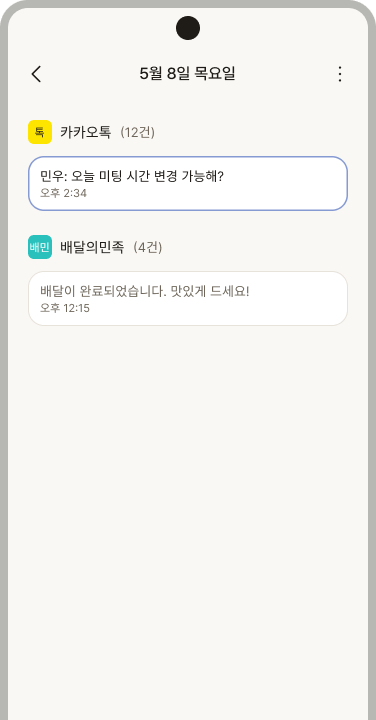
Notifications From the notifications at the top of your phone
- Once you turn on "Notification access" in your phone settings, it only checks notifications that arrive after that. It can't see earlier ones.
- It picks out only notifications that make good life records, such as payments, orders and shipping, food delivery, reservations, and travel (departures and boarding).
- If you tapped a notification yourself, it treats that as a meaningful moment and records it too.
- It doesn't collect the notifications below.
- Chat messages from apps like KakaoTalk (unless you tapped them)
- Ads, and persistent notifications like download progress
- Notifications containing verification codes or passwords
- Notifications containing identity details such as resident registration or passport numbers, or test results
- Emails, card numbers, phone numbers, account numbers, and detailed addresses are masked before saving. For example, a phone number becomes [phone number].
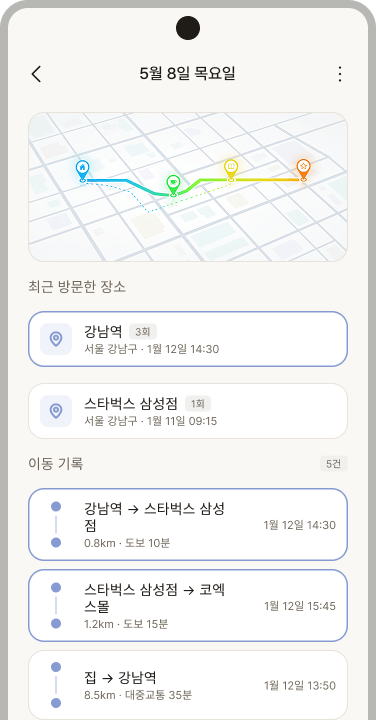
Location From your phone's location services
- It checks your location even when you're not using the app, to work out where you stayed and how you got around.
- While it's checking your location, a notification stays at the top of your phone.
- It works even if you only allow "Approximate location."
When does my information leave my phone? Only after you've reviewed what will be sent
- The information it gathers normally stays stored on your phone only.
- It's sent to the server for AI analysis only when you tap Create record, review the items to be sent, and agree.
- What you send is used only for the AI analysis that organizes your day. It isn't viewed for any other purpose, and it's stored in a form that can't be identified.
- You can turn off each item at any time in Settings > Data collection.